
A system restart is necessary at times. To do this, you can access the VPS control panel and send the restart command. Follow the steps below to reach the control panel.
- Access the client area:
Access the client area and click on my services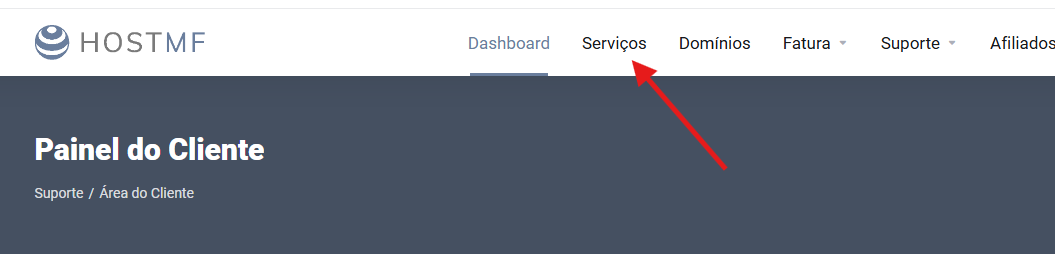
- Click on the corresponding VPS:
In your list of services, click on the row that corresponds to the VPS you need to restart, as shown in the screenshot below
- VPS Control Panel:
In this step you will already be on the VPS control panel screen. On this screen you can check the status of your VPS
- Control Area
In this part you will find the VPS control buttons.
- Control Buttons
On this screen you will see three main control buttons. When the VPS is online, it will be displayed as in the screenshot above.
STOP button Shut down via Operating System: The first button will request the VPS to shut down through the operating system. This is the safest shutdown; the system will start the shutdown process, which may take a few minutes. If the VPS is frozen, this option will not work.
Restart button Restart via Operating System: The second button will request a restart of the VPS through the operating system. The system will start the restart process, which may take a few minutes. If the VPS is frozen, this option will not work.
Shutdown button Forced Shutdown: The third button will perform a forced shutdown of the system. It is the equivalent of "pulling the plug on the PC." This will force the shutdown, and if the operating system is completely frozen, it may be the only option.


