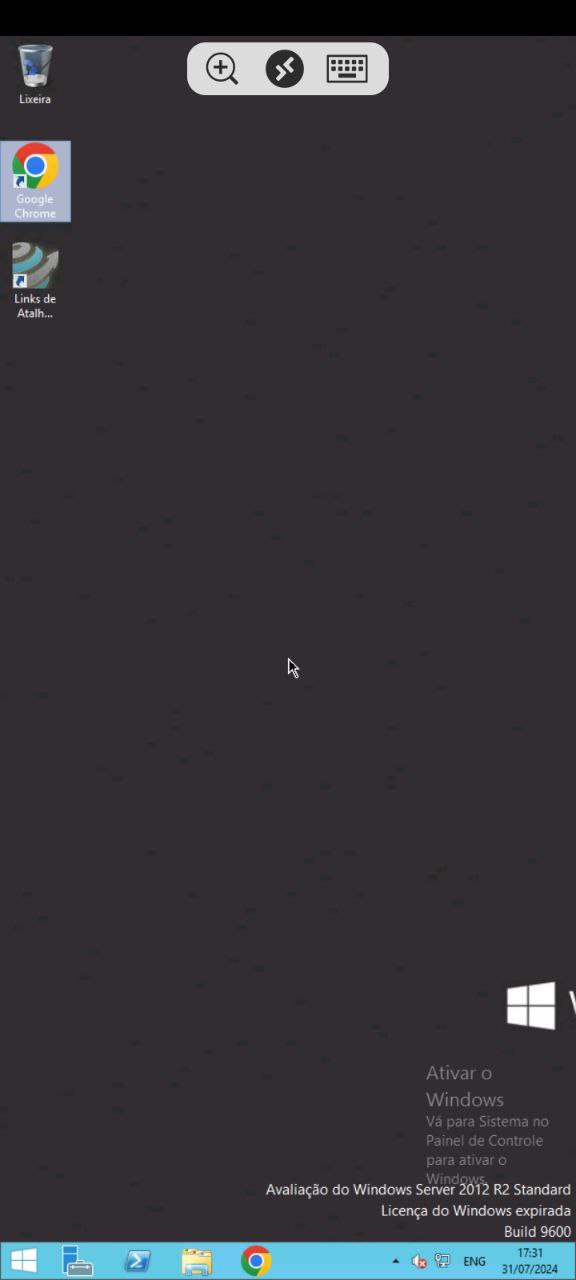
The new authentication method on the VPS is more secure and provides a better experience with the VPS, as you can access it in two different ways:
- Via browser.
- Via Remote Desktop.
This tutorial will explain how to access via Remote Desktop from your mobile phone.
1. The first step is to access the VPS domain. This domain can be found in:
- Installation email
- Installation message on WhatsApp.
- Client Area -> Services, as in the example below:
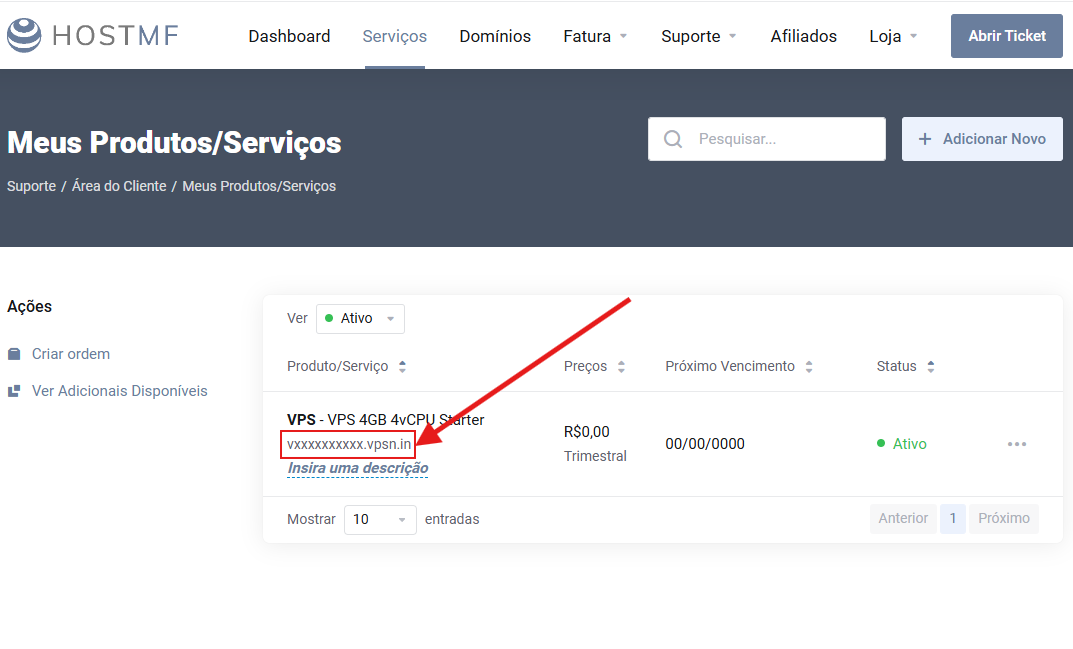
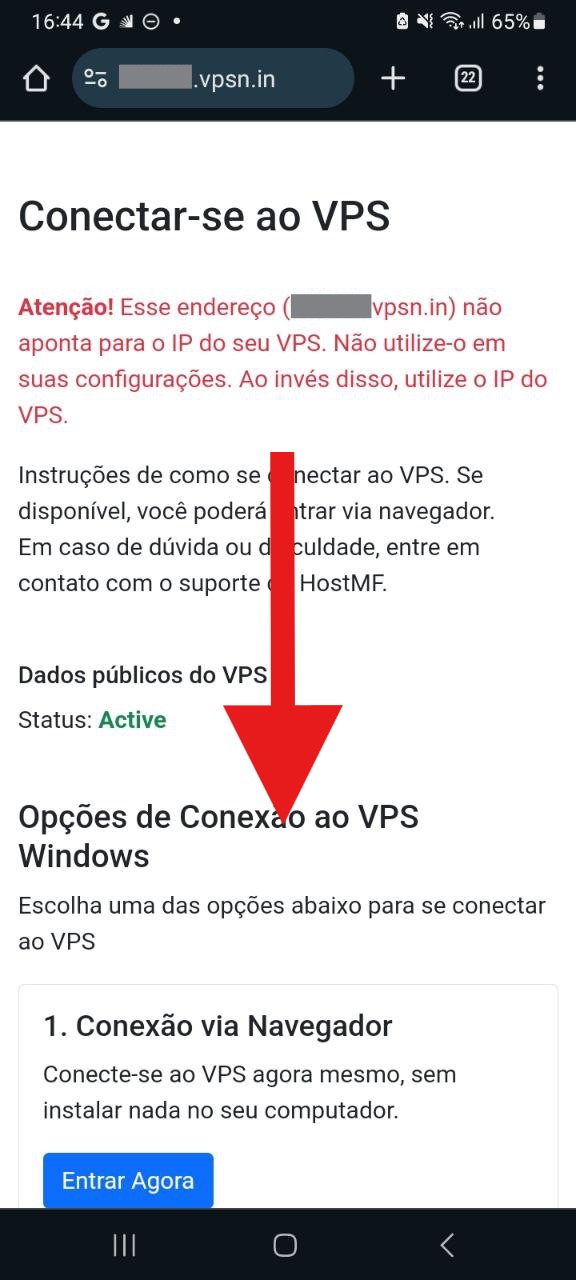
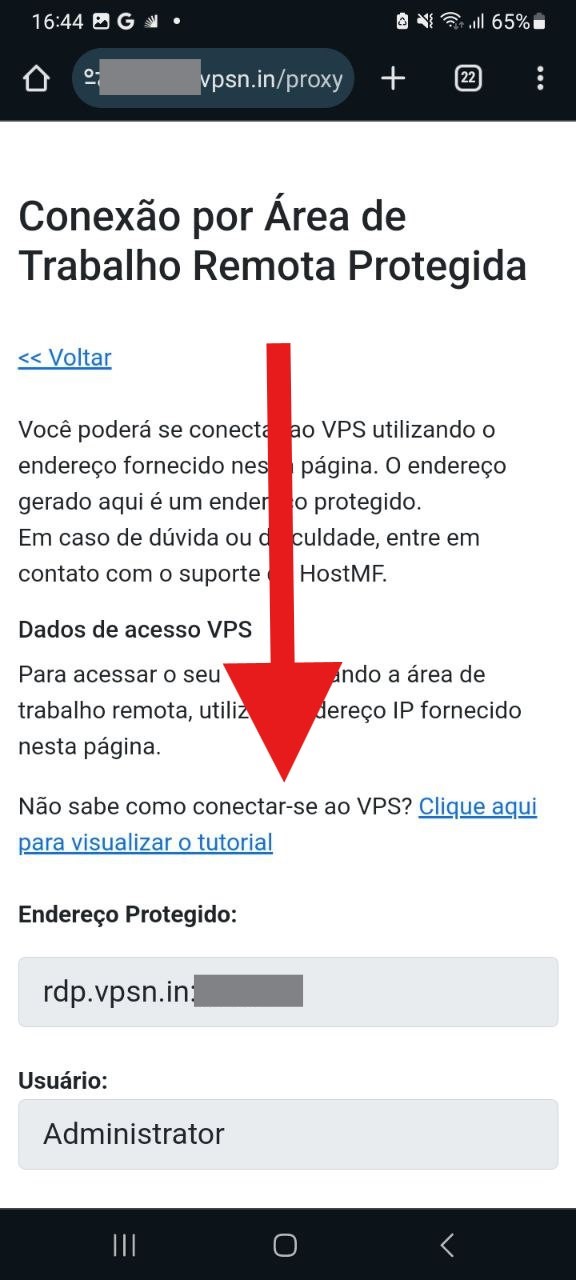
Once you locate the domain, which will look something like "vXXXXXXXXXX.vpsn.in", open it in your browser, and you will see a page like the one in the example below.
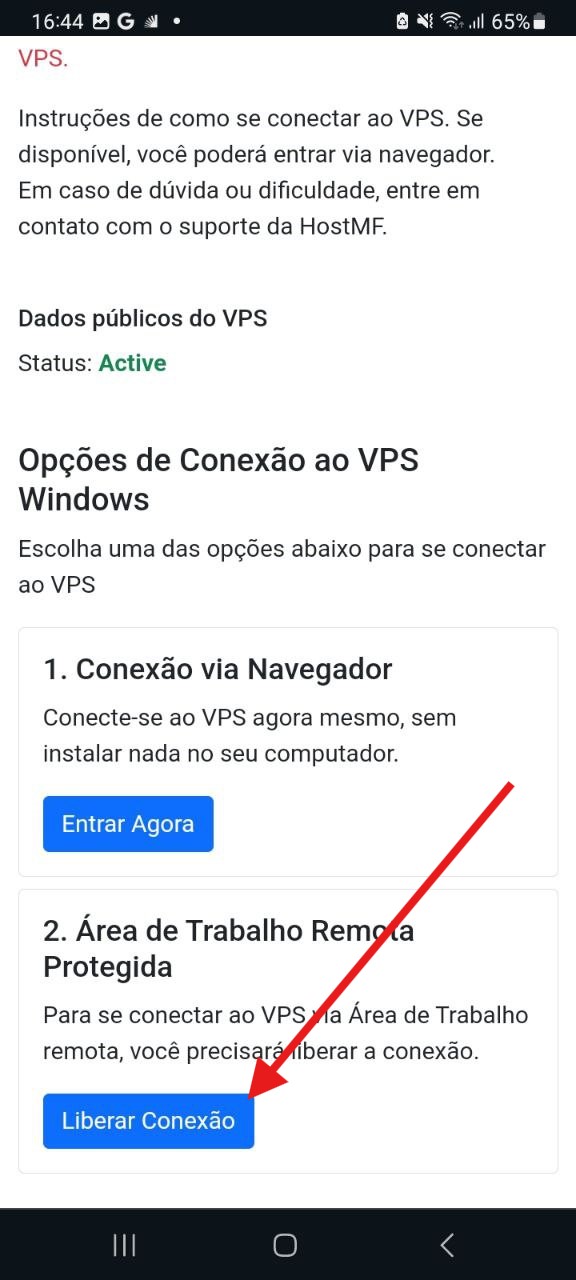
2. After opening the VPS domain, scroll to the bottom of the screen and click on "Liberar Conexão":
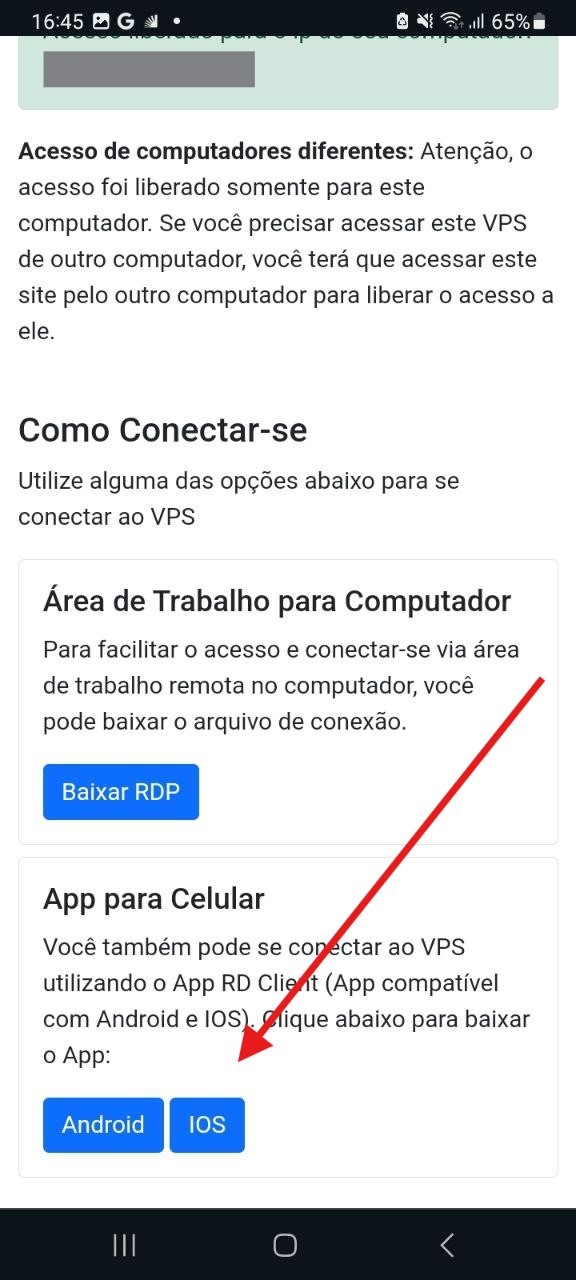
3. [IF YOU HAVEN'T DOWNLOADED THE APP YET]
Scroll to the end of the screen and click the button corresponding to your phone's system to download the App
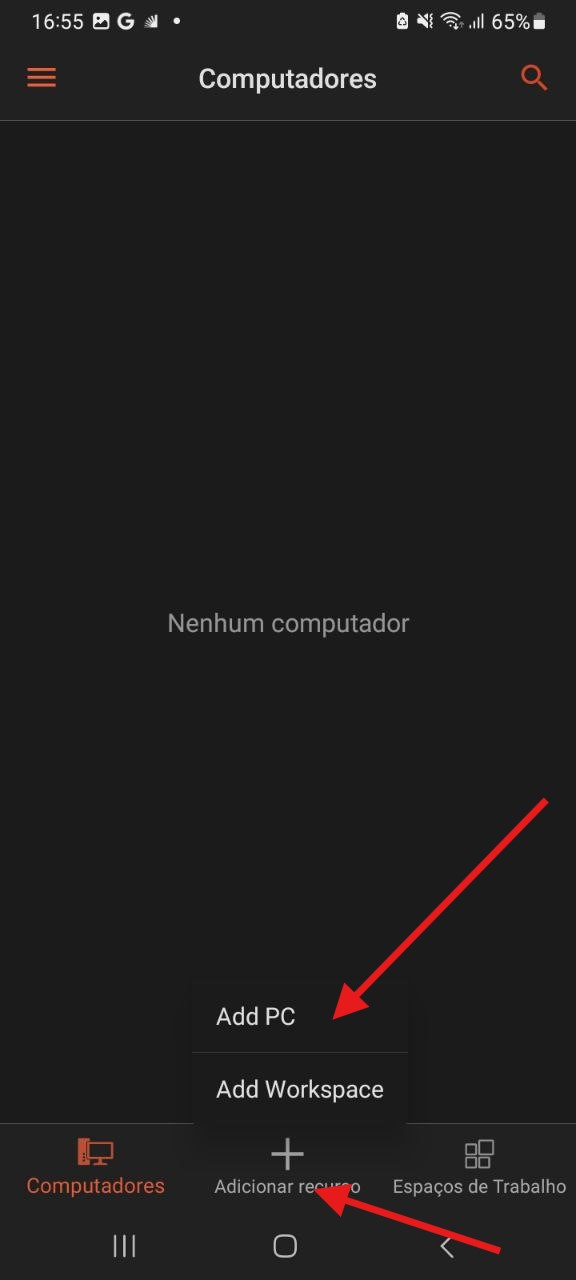
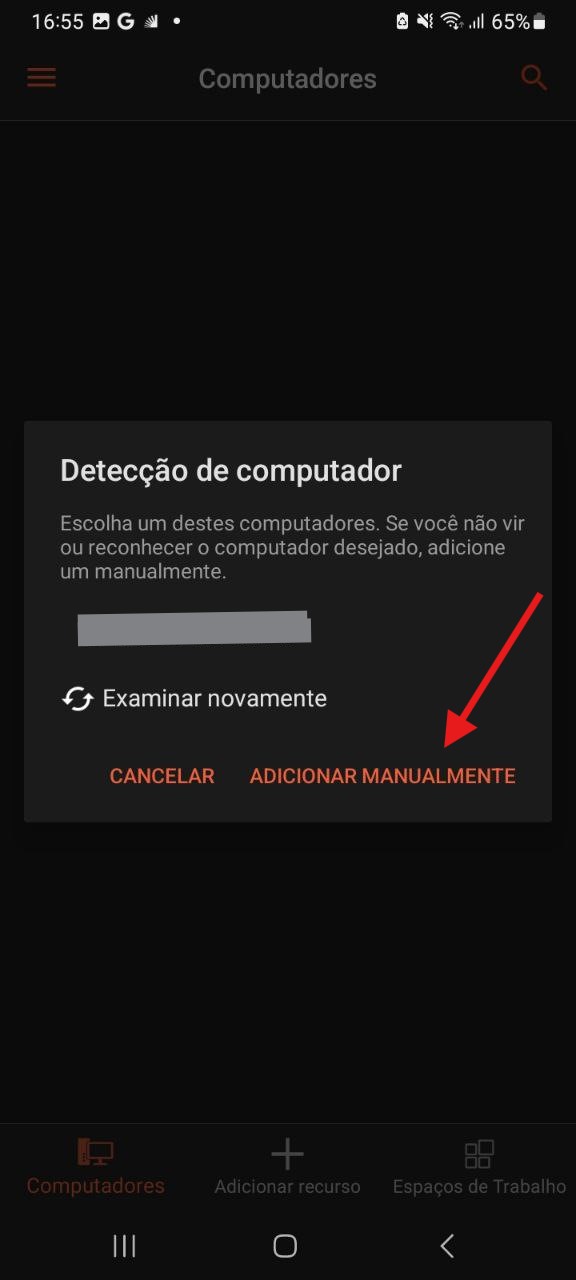
4. After downloading the App, open it and tap the button to add a new computer
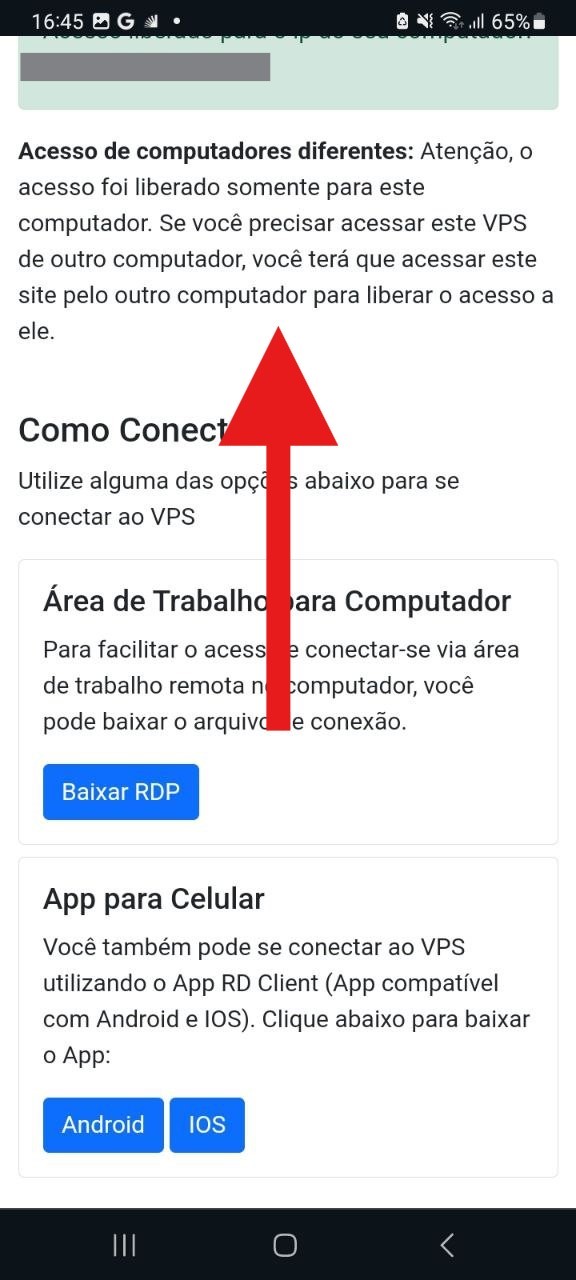
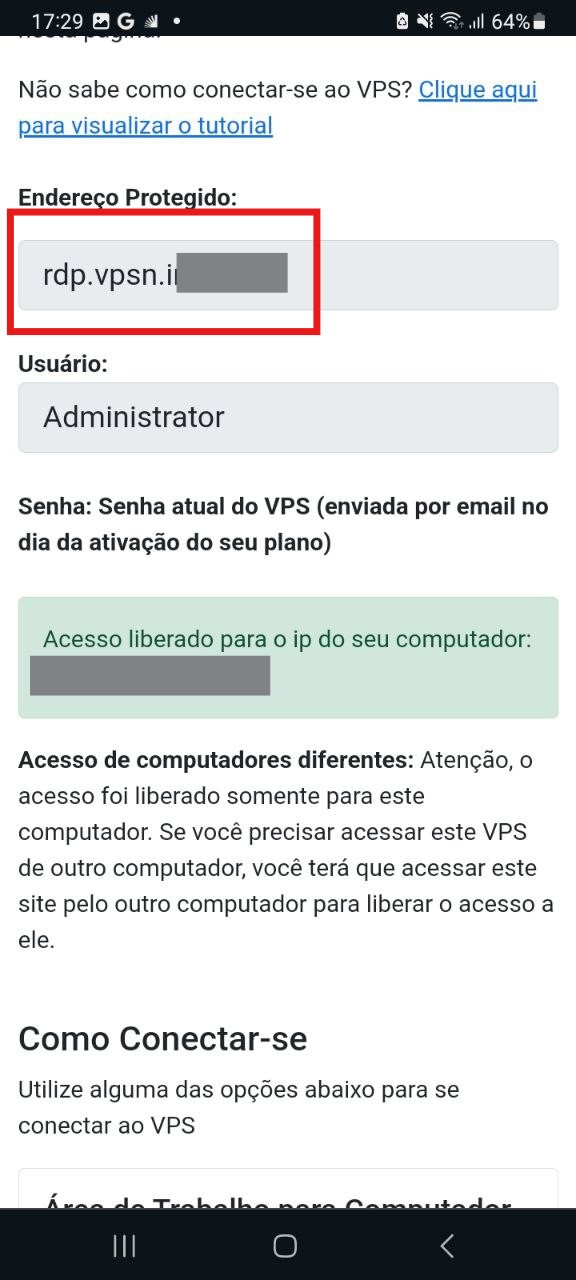
5. Go back to the VPS website, swipe the screen up and copy the protected address:
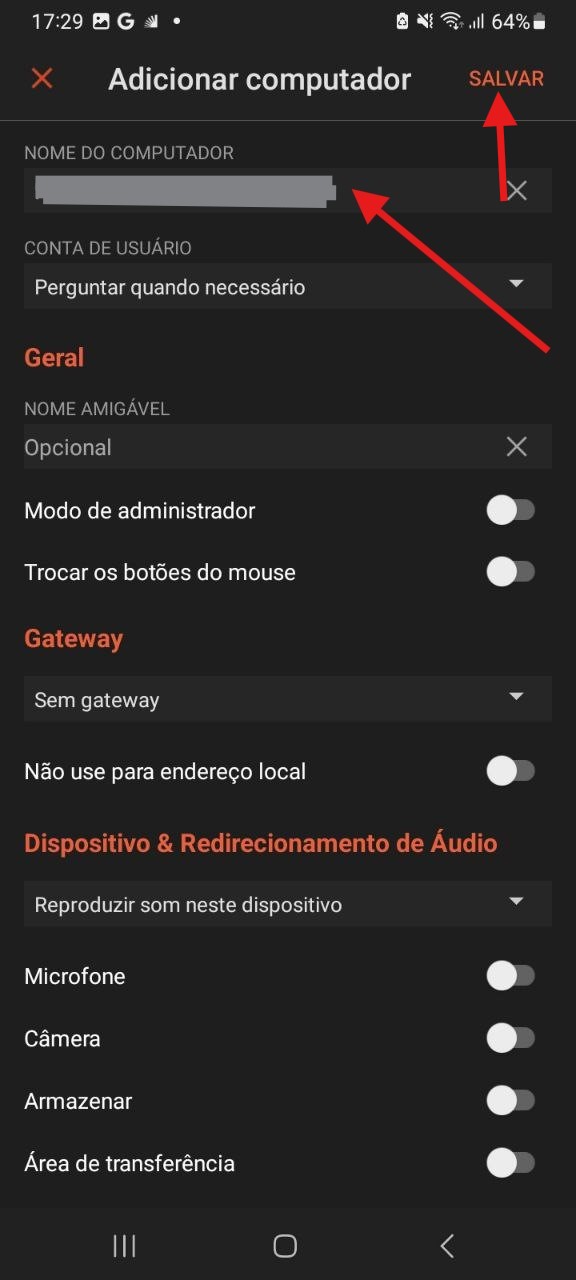
6. Paste the protected address into "nome do computador" (computer name) and click save:
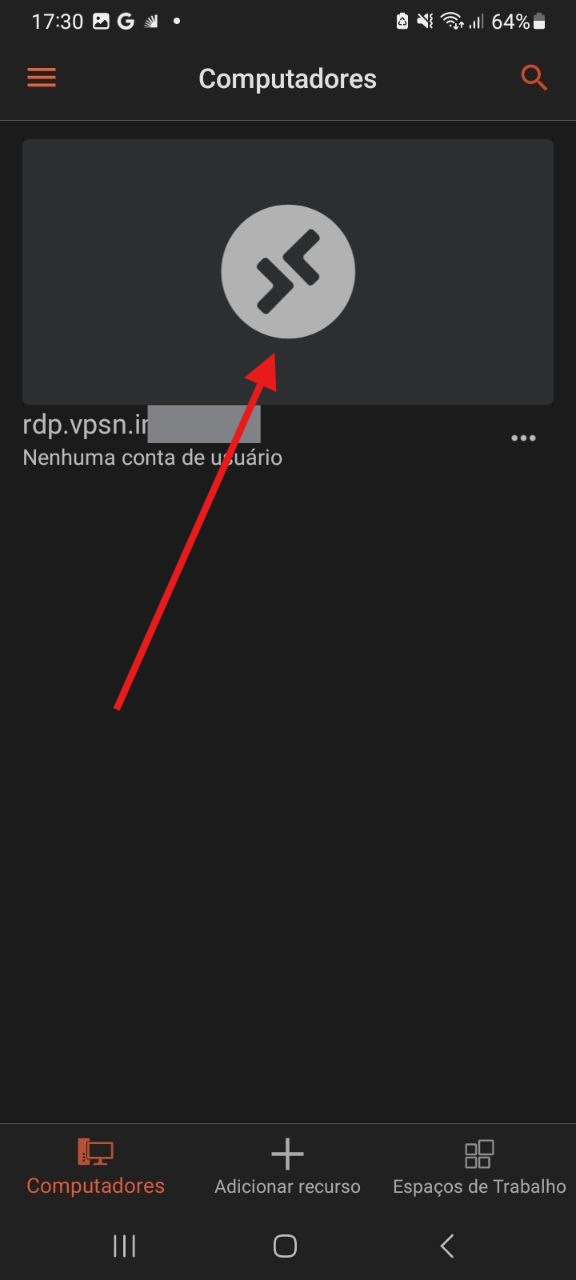
7. After saving, click the connection you created to enter the VPS.
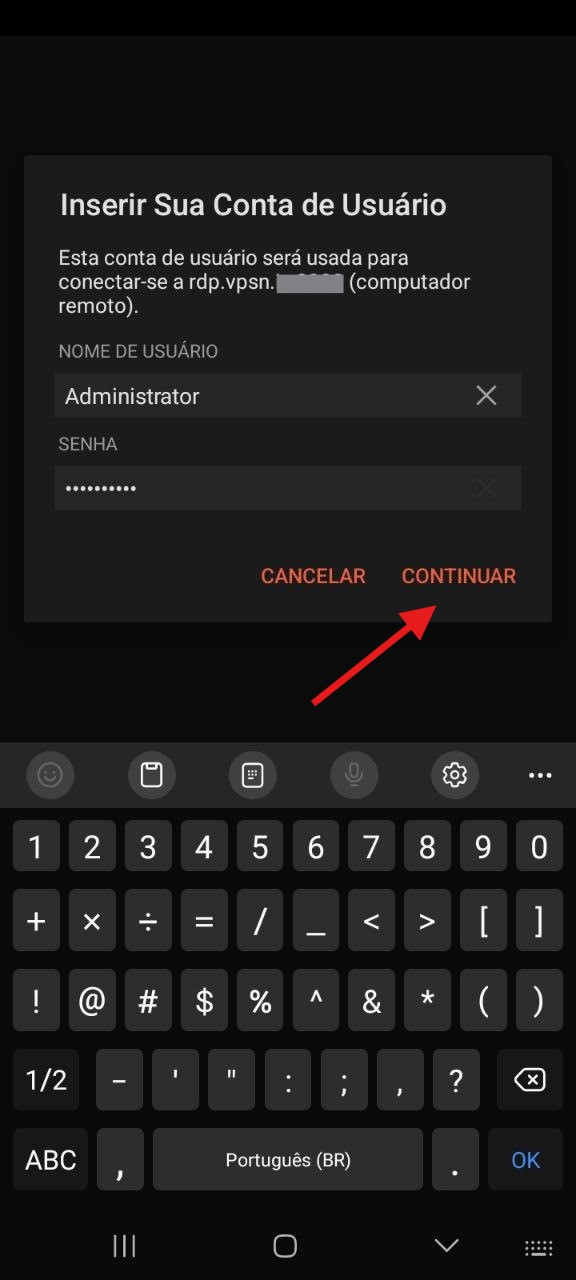
8. Enter the username and password and click continue:
9. Check the option "Nunca mais solicitar conexões com este computador" (Never ask for connections to this computer again) and click "Conectar" (Connect).
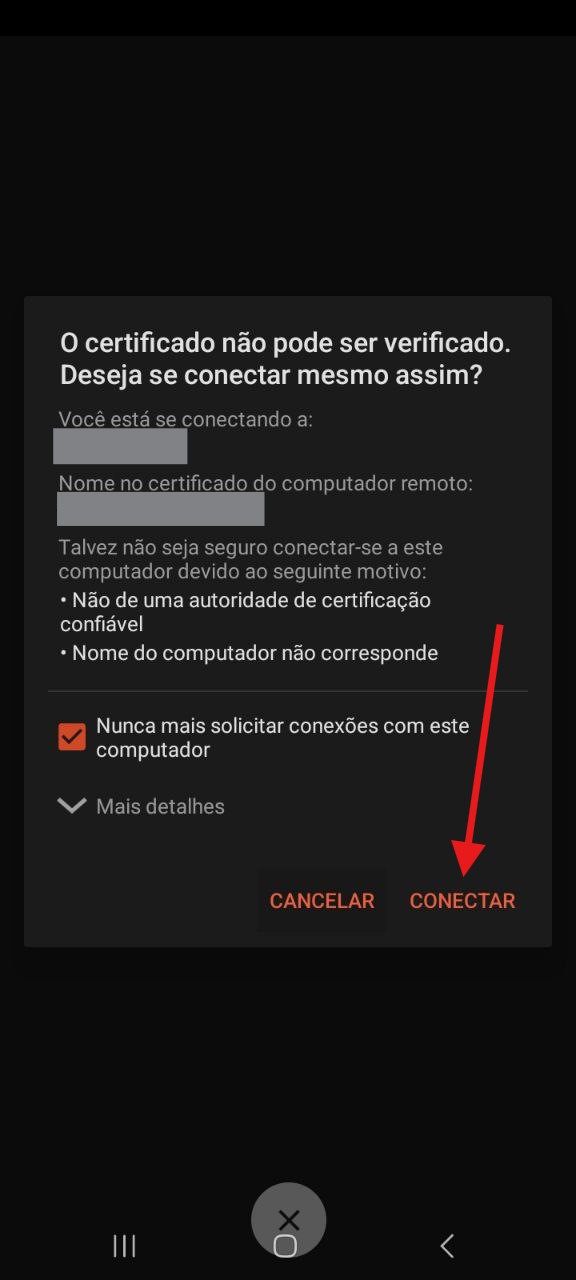
You will be logged into the VPS after completing this last step.